Support
Most questions are answered below. If yours isn't, write to us and include your Board ID: it tells us exactly which device you have.
Something went wrong?
- I lost my key: find it in Polar's portal.
- I lost access to the email I bought with: ask Polar to change it first.
- My key is linked to a board that isn't mine: replace the key, then write to us.
- My board broke: move the license to a new board.
- The board still says it is not activated: check Wi-Fi, then CHECK AGAIN.
- The board says there is no usable memory card: use a microSD of 32 GB or less.
- The Wi-Fi setup page won't open on my phone: turn off VPN and mobile data.
- Writing to us about your license? Let us write the email for you, or copy our email template.
Get help with your license
Answer a few questions and we write the email for you. Nothing is sent from this page: the email opens in your own mail app, and you send it from the email address on your order.
What happens next
This opens a ready-made email in your mail app. Nothing is sent until you press Send there.
No mail app? Copy this into an email to hello@handeos.com:
Finding your Board ID
On HAND-E, tap the gear on the home screen, then About. The Board ID starts with HAND-E-. While a device is not activated yet, the home screen shows it too.
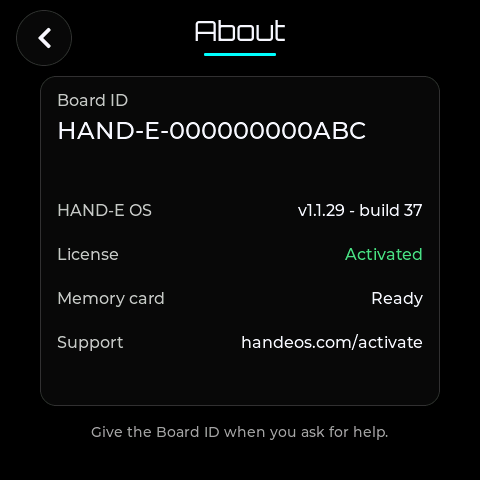
HAND-E-). Older HAND-E versions call it Device ID.Common questions
Writing to us about your license: email template
Send it from the email address on the order to hello@handeos.com. Fill in what you have and leave the rest empty. We answer within 2 business days.
Subject: HAND-E license help

What happened:
Order email:
Invoice number (from the PDF attached to Polar's order email):
Board ID (on the board: gear, then About; a board not activated yet shows it on its screen):
New Board ID (only for a replacement board):
Put the case number from our first reply in the subject of later emails.
How do I connect HAND-E to Wi-Fi?
- On the home screen, tap the Wi-Fi bar at the bottom.
- Scan the QR code on the screen with your phone. It joins the network
HAND-E-Setup. If your board shows a password under the code, the QR code already contains it; type it only if your phone cannot scan the code. The password is new every time setup opens. - A setup page opens on your phone. Choose your Wi-Fi and enter its password. If the page does not open, go to
http://192.168.4.1in your phone's browser.
HAND-E works with 2.4 GHz Wi-Fi networks. The apps use the network you set up here; you never enter Wi-Fi details in an app.
If your router offers a separate network for smart devices (IoT or guest network), you can put HAND-E there.
The Wi-Fi setup page does not open on my phone.
- Turn off any VPN and mobile data on your phone for a minute, so it does not leave the HAND-E network.
- Stay on the
HAND-E-Setupnetwork, even if your phone says it has no internet. - Open
http://192.168.4.1in your phone's browser.
Some VPNs (for example Mullvad) block local networks: disconnect the VPN for a minute, or turn on its Local network sharing setting.
On iPhone: after joining HAND-E-Setup, close the camera app: the setup page then opens.
Hotel, campus and office networks that ask you to sign in on a web page, and 5 GHz-only networks, do not work with HAND-E.
Where is my license key?
Right after you buy a license, the thank-you page shows your key (it starts with HANDE-). The order confirmation email comes from Polar, which handles our payments; it does not contain the key itself, but its Access purchase link opens your purchase, where the key is shown under Benefit Grants. If you cannot find the email, check your spam or junk folder for a message from Polar, or sign in to Polar's customer portal with the email address you used to buy.
I lost my license key.
Open Polar's customer portal and sign in with the email address you used to buy (Polar emails you a sign-in code). Your key is listed under Benefit Grants. If someone else may have seen your key, you can replace it with a new one there; a board you already activated stays activated, and from then on only the new key works. Still stuck? Write to us with your order email.
I lost access to the email address I bought with.
First ask Polar's support to change the email address on your order: Polar is the seller and checks that you are the buyer. Then write to us from the new address. We move or release a license only with confirmation from the email address on the order, so we reply there and act only after you answer from it. The invoice PDF attached to Polar's order email helps us find your order, but it is not enough on its own. Use our email template. If the email on your order was changed recently, we first write to the previous address as well and wait 2 days before we move the license, so a stolen mailbox cannot take it over quietly.
Someone used my key before me, or my key is linked to a board that isn't mine.
- First replace your key in Polar's customer portal. The old key stops working at once.
- Then write to hello@handeos.com from the email address on the order, with the Board ID of your board. We reply there, and once you confirm, we release the license from the other board. Use our email template.
- Link it to your board with the new key: install HAND-E, or activate it if it already runs HAND-E.
Replace the key first: otherwise the other person could link the old key again. If the email on your order was changed recently, we first write to the previous address as well and wait 2 days before we move the license, so a stolen mailbox cannot take it over quietly. This does not count as your once-a-year move.
Who can see my license key?
Anyone who can read the email address you bought with: Polar's email and its portal sign-in code both go there, so keep that mailbox safe and keep Polar's email. If you think someone saw your key, replace it in Polar's customer portal: a board you already activated stays activated, and from then on only the new key works.
I have several boards.
One license activates one board, so buy one license for each board. Each purchase gets its own key.
Can I get a refund?
Yes, a full refund within 14 days of your purchase, as long as the key has not been activated. Write to hello@handeos.com from the email address on the order, or ask Polar. A refunded key is revoked at once and can no longer be activated; a board already activated with it locks the next time it is online and checks its license (a board kept offline keeps working until then). See the terms. Use our email template.
My board broke. Can I move my license to a new one?
Yes. Write to hello@handeos.com from the email address on the order, with the Board ID of the new board. We move or release a license only with confirmation from the email address on the order: we reply to that address and act only after you answer from it. The invoice PDF attached to Polar's order email helps us find your order, but it is not enough on its own. If you no longer have access to that email, first ask Polar's support to change the email address on your order (Polar is the seller and checks that you are the buyer), then write to us from the new address. Once it is moved, the old board stops working with it the next time it is online and checks its license (a board kept offline keeps working until then). We move a license at most once a year. Use our email template. If the email on your order was changed recently, we first write to the previous address as well and wait 2 days before we move the license, so a stolen mailbox cannot take it over quietly.
When we have moved it, install HAND-E on the new board if it is not on it yet, or activate it if it already runs HAND-E.
Do I need to activate HAND-E after installing it?
No. The installer asks for your key and links it to the board before it installs HAND-E. Connect the board to Wi-Fi and it picks up its license by itself.
handeos.com/activate is only for a board that already runs HAND-E, for example one you installed earlier or a replacement board after we moved your license:
- On a computer, open handeos.com/activate in Chrome or Edge.
- Connect HAND-E with a USB cable that carries data, with the HAND-E home screen showing, and choose Connect device. The page reads the Board ID from the device.
- Enter your license key and choose Link license to this device.
I activated, but the board still says it is not activated.
Make sure the board is connected to Wi-Fi (see above), then tap CHECK AGAIN on its screen. The board picks up its license over Wi-Fi and keeps it, even offline. Still not activated? Write to us with your Board ID and order email.
How do I install or switch apps?
Tap an app on the home screen. If it isn't on the device yet, HAND-E asks to download it, installs it and opens it. HAND-E keeps two apps at a time: installing a third replaces the one you used least recently. Your settings in that app stay saved.
How do I get back to the home screen from an app?
Hold the small button on the side of HAND-E for five seconds until the System Menu appears, then choose Open HAND-E. Many apps also have an Open HAND-E entry in their own settings.
An app looks stuck or the screen stays dark.
- Unplug HAND-E, wait five seconds and plug it back in.
- If an app still does not open, hold the side button for five seconds and choose Open HAND-E, then open the app again from the home screen.
- Still stuck? Reinstall HAND-E over USB from Chrome or Edge on a computer. Your license stays with your Board ID.
Do I need a memory card?
Yes, keep the microSD card in HAND-E. Apps and updates are downloaded to it first, and Framini plays your photos and videos from it.
The board says there is no usable memory card.
Use a microSD card of 32 GB or less: those come formatted as FAT32, which HAND-E reads. Cards of 64 GB and more come formatted as exFAT, which HAND-E cannot read.
A larger card works only after you format it as FAT32, which erases everything on it. On a Mac: Disk Utility, select the card, Erase, Format MS-DOS (FAT). Windows' own format tool does not offer FAT32 above 32 GB, so the simplest answer is a 32 GB card.
Put the card in, then restart the board (unplug it and plug it back in).
Does HAND-E work without the internet?
Installed apps keep working offline. GeoQuake and GeoMap need the internet for fresh data; MemoFrame, Framini and DeskBuddy work without it once set up.
Contact us
Email hello@handeos.com with your Board ID and what you see on the screen. A photo of the screen helps.